Essentials Recognition
Display a recognition wall on SharePoint pages showcasing appreciation, awards, and milestones.
Configuration Guide
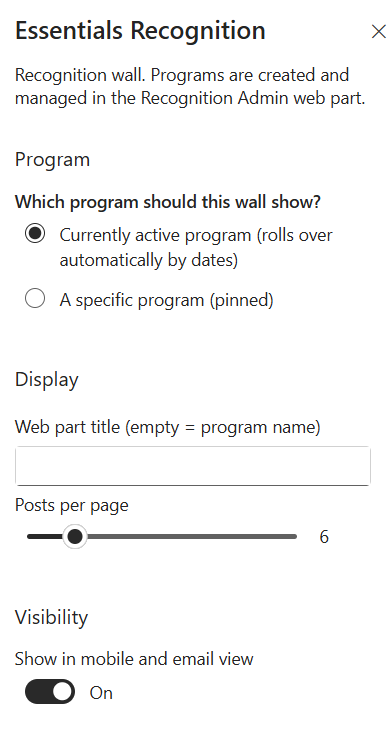
To configure the Essentials Recognition webpart, edit your page, select the webpart, and open the properties pane on the right.
- Which program should this wall show? — Select the program targeting mode for the wall:
- Currently active program (rolls over automatically by dates) — Dynamically updates to display whichever recognition program is currently active based on pre-configured campaign start/end dates.
- A specific program (pinned) — Permanently pins a single recognition campaign to display on this webpart, regardless of schedule.
- Web part title (empty = program name) — Enter a custom heading to display above the recognition wall. If left blank, the webpart automatically uses the active program's name as its title.
- Posts per page — Use the slider to set the maximum number of recognition posts displayed per page view (e.g., 6).
- Show in mobile and email view — Toggle On/Off under Visibility to control whether the recognition wall renders when accessed on mobile devices or within email views.
Key Features Configuration
| Feature | Description | Configuration |
|---|---|---|
| Program targeting | Which program the wall displays | Currently active (auto rollover by dates) or a specific pinned program |
| Web part title | Heading above the recognition wall | Free-text field (blank uses the active program's name) |
| Posts per page | Maximum posts per page view | Slider (e.g., 6) |
| Mobile & email view | Rendering on mobile devices and email views | Toggle On/Off |
Property Pane Options
| Option | Type | Description |
|---|---|---|
| Program targeting | Radio | Currently active program (auto rollover by dates) or a specific pinned program |
| Web part title | Text | Custom heading (blank uses the active program's name) |
| Posts per page | Slider | Maximum recognition posts per page view (e.g., 6) |
| Show in mobile and email view | Toggle | Render the recognition wall on mobile devices and email views |
Illustration