Essentials World Clock
Track current time zones across office locations with day/night indicators and flexible formatting.
Configuration Guide
To configure the Essentials World Clock webpart, edit your page, select the webpart, and open the properties pane on the right.
Locations Management
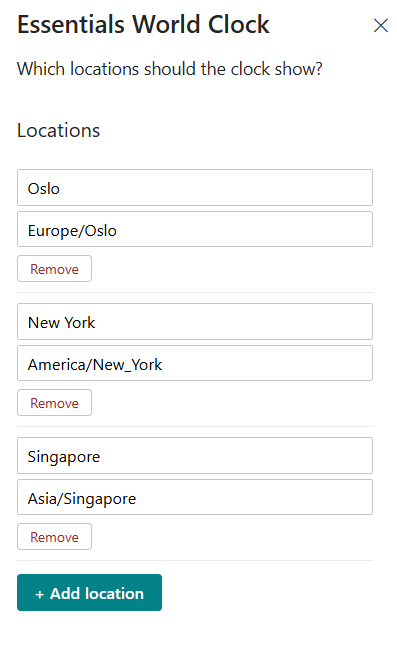
Add multiple cities by clicking "+ Add location". For each entry, input the display name (e.g., Oslo, New York, Singapore) and its corresponding time zone identifier (e.g., Europe/Oslo, America/New_York, Asia/Singapore). Remove locations using the Remove button under each pair.
Layout Settings
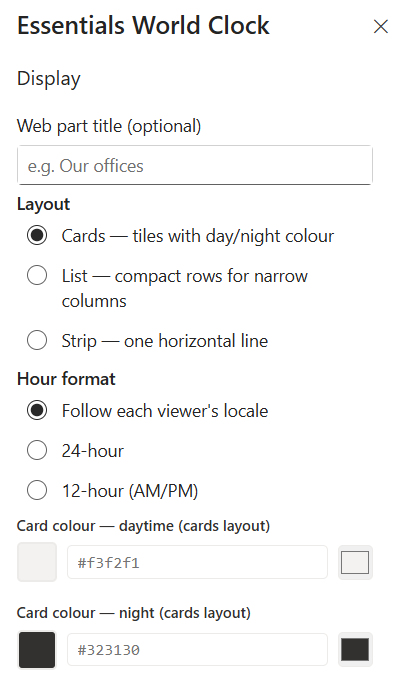
Web part title (optional) — Specify a header title above the clocks (e.g., Our offices).
Layout — Choose how time zones are visually rendered:
- Cards — Individual tiles featuring dynamic background colors based on whether it is day or night in that location.
- List — Compact, space-saving horizontal rows suited for narrow columns or sidebars.
- Strip — Displays all tracked time zones aligned in a single horizontal line.
Hour format — Select how time values are formatted:
- Follow each viewer's locale — Automatically matches the format settings of the individual user's browser/system settings.
- 24-hour — Displays time in 24-hour military format (e.g., 14:30).
- 12-hour (AM/PM) — Displays time in standard 12-hour format with AM/PM indicators.
Card colour — daytime (cards layout) — Set the hex color code for card backgrounds during local daylight hours (e.g., #f3f2f1).
Card colour — night (cards layout) — Set the hex color code for card backgrounds during local nighttime hours (e.g., #323130).
Display Settings
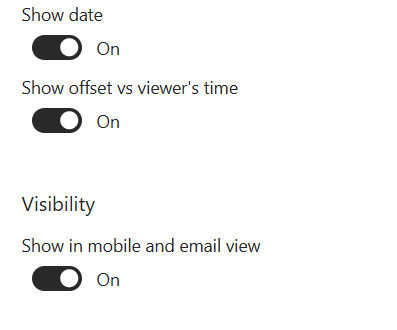
- Show date — Toggle On/Off to display or hide the local calendar date beneath the clock time.
- Show offset vs viewer's time — Toggle On/Off to display time difference indicators relative to the viewer's current local time zone (e.g., +2 hrs or -5 hrs).
Visibility
- Show in mobile and email view — Toggle On/Off to control whether the webpart renders on mobile devices or email views.
Key Features Configuration
| Feature | Description | Configuration |
|---|---|---|
| Locations | Tracked office locations | Display name + time zone identifier per entry |
| Web part title | Optional header above the clocks | Free-text field (blank hides the title) |
| Layout | Visual rendering of time zones | Cards, List, or Strip |
| Hour format | Time value formatting | Viewer's locale, 24-hour, or 12-hour (AM/PM) |
| Day/night colors | Card background during local hours | Hex color codes for daytime and nighttime |
| Show date | Local calendar date beneath the time | Toggle On/Off |
| Show offset vs viewer's time | Time difference relative to the viewer | Toggle On/Off (e.g., +2 hrs) |
| Mobile & email view | Webpart rendering on mobile and email | Toggle On/Off |
Property Pane Options
| Option | Type | Description |
|---|---|---|
| Locations | Collection | Add display name and time zone identifier pairs, with Remove button |
| Web part title | Text | Optional header title above the clocks |
| Layout | Radio | Cards, List, or Strip |
| Hour format | Radio | Follow each viewer's locale, 24-hour, or 12-hour (AM/PM) |
| Card colour — daytime | Colour picker | Hex color for card backgrounds during local daylight hours |
| Card colour — night | Colour picker | Hex color for card backgrounds during local nighttime hours |
| Show date | Toggle | Display or hide the local calendar date beneath the clock time |
| Show offset vs viewer's time | Toggle | Display time difference indicators relative to the viewer's time zone |
| Show in mobile and email view | Toggle | Control whether the webpart renders on mobile devices or email views |
Illustration