Essentials Search Results
Render search query results on SharePoint pages with verticals, multiple layouts, and optional AI Assistant.
Configuration Guide
To configure the Essentials Search Results webpart, edit your page, select the webpart, and open the properties pane on the right.
Connection & Query Source
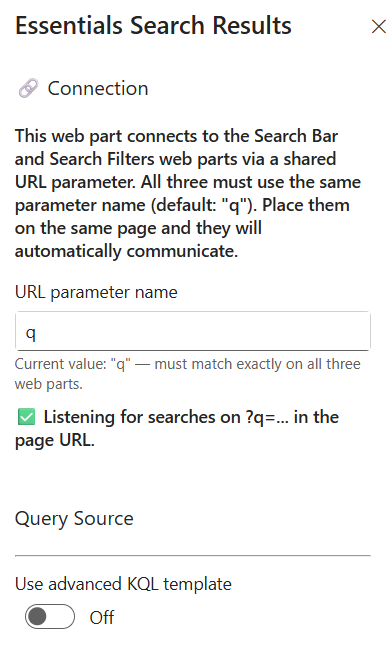
Set up parameter listening and define where search queries are sourced:
- URL parameter name — Set the key used to capture queries from the URL (Default: q). Must match the parameter name used across all connected search webparts on the page.
- Listening indicator — Confirms the webpart is actively listening for queries passed via ?q=....
- Use advanced KQL template — Toggle On/Off to enable custom Keyword Query Language (KQL) templates for advanced query rules.
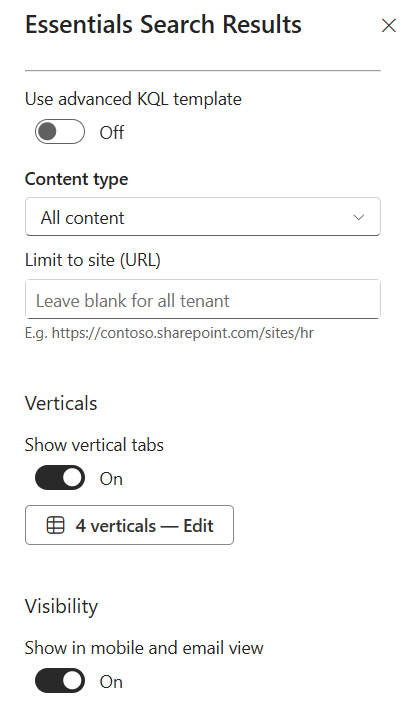
- Content type — Select the scope of indexed content to pull from (e.g., All content).
- Limit to site (URL) — Restrict results to a specific site collection by entering its URL (e.g., https://contoso.sharepoint.com/sites/hr). Leave blank to search across the entire tenant.
Verticals
Organize content into categorized tabs to help users refine searches by content type:
- Show vertical tabs — Toggle On/Off to display or hide top vertical category tabs.
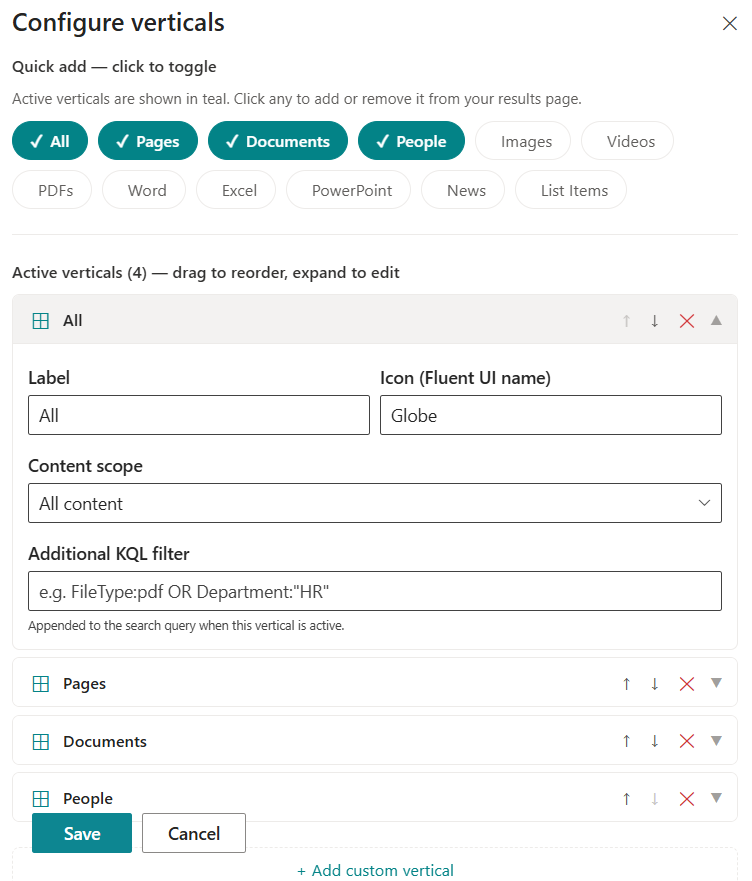
- Configure verticals — Click Edit (e.g., 4 verticals — Edit) to manage active category tabs:
- Quick add — Click quick-toggle chips to quickly add or remove common categories (e.g., All, Pages, Documents, People, Images, Videos, PDFs, Word, Excel, PowerPoint, News, List Items).
- Vertical properties — For each vertical, customize its Label, Icon (Fluent UI name) (e.g., Globe), Content scope, and Additional KQL filter (e.g., FileType:pdf OR Department:"HR").
- Add custom vertical — Click "+ Add custom vertical" to create entirely new category tabs.
Layout Options
Choose how returned search items are displayed on the page:
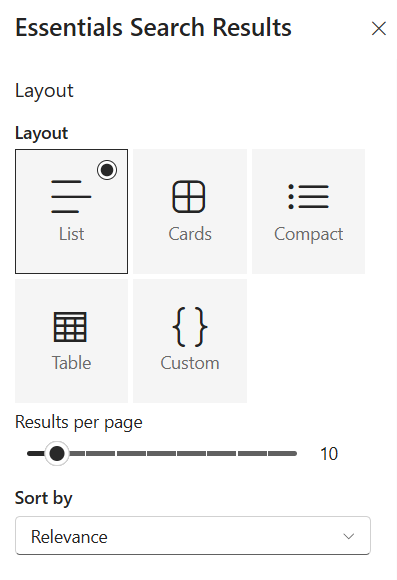
- Layout — Select from five display formats:
- List — Standard linear list view with detail summaries.
- Cards — Grid tile cards highlighting visual previews.
- Compact — High-density, space-saving list layout.
- Table — Structured row-and-column data grid view.
- Custom — Tailored rendering layout.
- Results per page — Use the slider to set the maximum number of items returned per page (e.g., 10).
- Sort by — Select the default ordering criteria (e.g., Relevance).
Display Settings
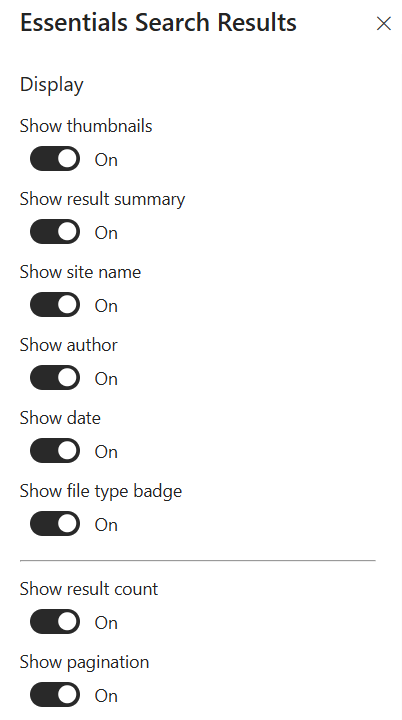
Toggle individual card elements, metadata fields, and pagination controls:
- Show thumbnails — Toggle On/Off to display or hide visual document/page preview thumbnails.
- Show result summary — Toggle On/Off to show hit-highlighted summary text snippets.
- Show site name — Toggle On/Off to show the host site source name.
- Show author — Toggle On/Off to show document or page creators.
- Show date — Toggle On/Off to display last modified or publication dates.
- Show file type badge — Toggle On/Off to display file extension badges (e.g., PDF, DOCX).
- Show result count — Toggle On/Off to show total count of matching results returned.
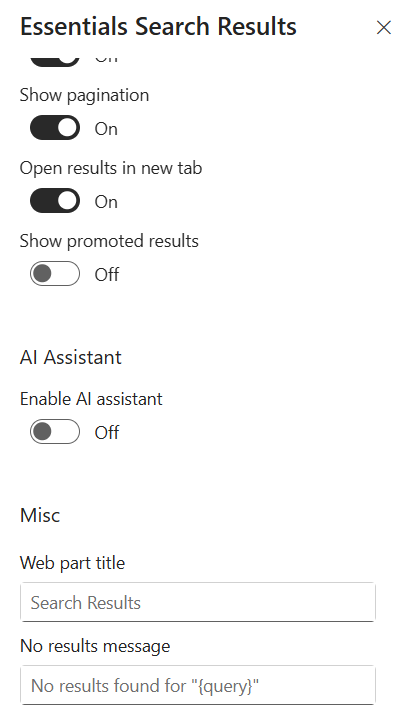
- Show pagination — Toggle On/Off to display page navigation controls at the bottom.
- Open results in new tab — Toggle On/Off to launch clicked search result links in a new browser tab.
- Show promoted results — Toggle On/Off to highlight promoted or bookmarked administrative search results.
AI Assistant & Misc
Configure generative search features, section headings, and fallback messaging:
- Enable AI assistant — Toggle On/Off to enable integrated generative AI capabilities for search summaries.
- Web part title — Specify a header title for the search results section (e.g., Search Results).
- No results message — Customize the fallback text displayed when no items match the query (e.g., No results found for "{query}").
- Show in mobile and email view — Toggle On/Off under Visibility to control rendering on mobile devices and email views.
Key Features Configuration
| Feature | Description | Configuration |
|---|---|---|
| URL parameter name | Key used to capture queries from the URL | Free-text field (default: q), matching all connected search webparts |
| Advanced KQL template | Custom query rules | Toggle On/Off |
| Content type | Scope of indexed content | Dropdown (e.g., All content) |
| Limit to site (URL) | Restrict results to a site collection | URL field (blank searches the entire tenant) |
| Verticals | Categorized search tabs | Toggle tabs, quick-add chips, vertical properties, custom verticals |
| Layout | Display format for results | List, Cards, Compact, Table, Custom |
| Results per page | Items returned per page | Slider (e.g., 10) |
| Display elements | Card fields and pagination | Thumbnails, summary, site, author, date, file type badge, result count, pagination toggles |
| AI assistant | Generative search summaries | Toggle On/Off |
| Mobile & email view | Rendering on mobile devices and email views | Toggle On/Off |
Property Pane Options
| Option | Type | Description |
|---|---|---|
| URL parameter name | Text | Key used to capture queries from the URL (default: q) |
| Listening indicator | Indicator | Confirms active listening for queries via ?q=... |
| Use advanced KQL template | Toggle | Enable custom Keyword Query Language templates |
| Content type | Dropdown | Scope of indexed content to pull from |
| Limit to site (URL) | Text | Restrict results to a specific site collection |
| Show vertical tabs | Toggle | Display or hide top vertical category tabs |
| Configure verticals | Button | Edit verticals (quick add chips, properties, custom verticals) |
| Layout | Radio | List, Cards, Compact, Table, Custom |
| Results per page | Slider | Maximum items returned per page (e.g., 10) |
| Sort by | Dropdown | Default ordering criteria (e.g., Relevance) |
| Show thumbnails | Toggle | Display visual previews |
| Show result summary | Toggle | Show hit-highlighted summary snippets |
| Show site name | Toggle | Show host site source name |
| Show author | Toggle | Show document or page creators |
| Show date | Toggle | Display last modified or publication dates |
| Show file type badge | Toggle | Display file extension badges |
| Show result count | Toggle | Show total count of matching results |
| Show pagination | Toggle | Display page navigation controls |
| Open results in new tab | Toggle | Launch result links in a new browser tab |
| Show promoted results | Toggle | Highlight promoted search results |
| Enable AI assistant | Toggle | Enable generative AI search summaries |
| Web part title | Text | Header title for the search results section |
| No results message | Text | Fallback text when no items match |
| Show in mobile and email view | Toggle | Control rendering on mobile devices and email views |
Illustration