Essentials Weather
Bring real-time local weather conditions and multi-day forecasts into SharePoint.
Configuration Guide
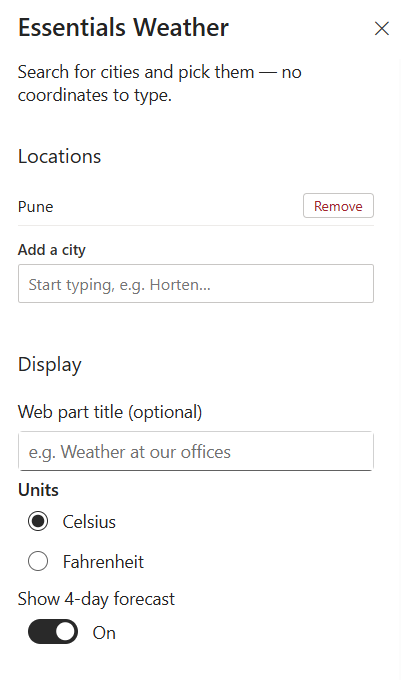
To configure the Essentials Weather webpart, edit your page, select the webpart, and open the properties pane on the right.
- Locations Management — Add locations by typing a city name into the "Add a city" field (e.g., Start typing, e.g. Horten...) and selecting the matching city. Existing locations (e.g., Pune) appear in the list above and can be deleted at any time using the Remove button.
- Web part title (optional) — Enter a custom heading to display above the weather cards (e.g., Weather at our offices). Leave blank to hide the title area.
- Units — Select the temperature unit standard for the webpart display:
- Celsius — Displays temperatures in °C.
- Fahrenheit — Displays temperatures in °F.
- Show 4-day forecast — Toggle On/Off to show or hide an extended 4-day weather forecast alongside current conditions.
Key Features Configuration
| Feature | Description | Configuration |
|---|---|---|
| Locations | Cities tracked for weather | Type a city name and select the match; remove with the Remove button |
| Web part title | Optional header above the weather cards | Free-text field (blank hides the title) |
| Units | Temperature unit standard | Celsius (°C) or Fahrenheit (°F) |
| 4-day forecast | Extended forecast alongside current conditions | Toggle On/Off |
Property Pane Options
| Option | Type | Description |
|---|---|---|
| Locations | Collection | Add a city field with matching city selection and Remove button per location |
| Web part title | Text | Optional heading above the weather cards |
| Units | Radio | Celsius or Fahrenheit |
| Show 4-day forecast | Toggle | Show or hide the extended 4-day weather forecast |
Illustration